
Fix Performance Issues
Stutter, FPS drops or lag in Ragnarok: Zero? These PC, Windows and network tweaks help most setups. What you need depends on your PC, ISP and network, but doing all of them is good for playing Ragnarok anyway.
Do it at your own risk: these are players’ tips, not official ones.
Before you start
- Close every Ragnarok: Zero client.
- Install CPU-Z and Process Lasso: CPU-Z · Process Lasso
1. XMP profile for your memory
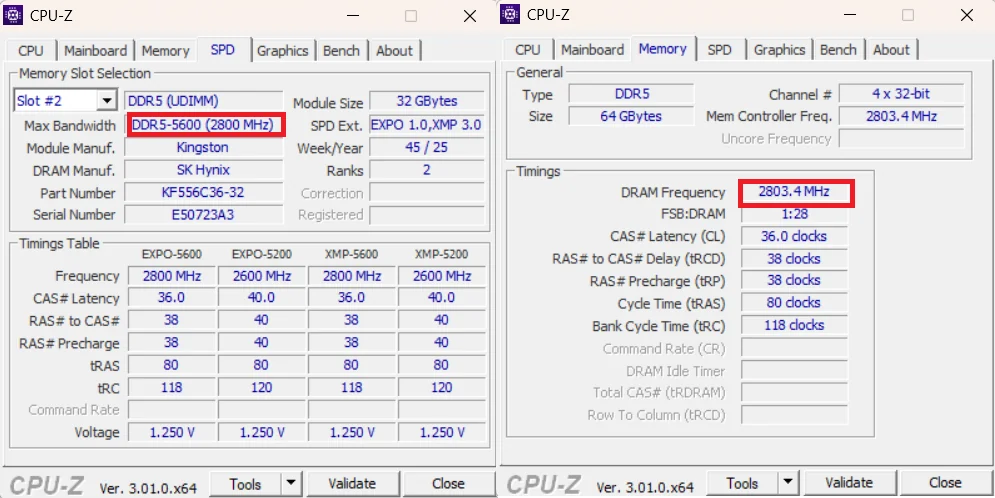
Check whether your RAM runs at its rated speed: open CPU-Z → Memory tab. If DRAM Frequency × 2 doesn’t match the module’s speed in the SPD tab (Max Bandwidth, e.g. DDR5-5600 = 2800 MHz), your XMP profile isn’t on yet.
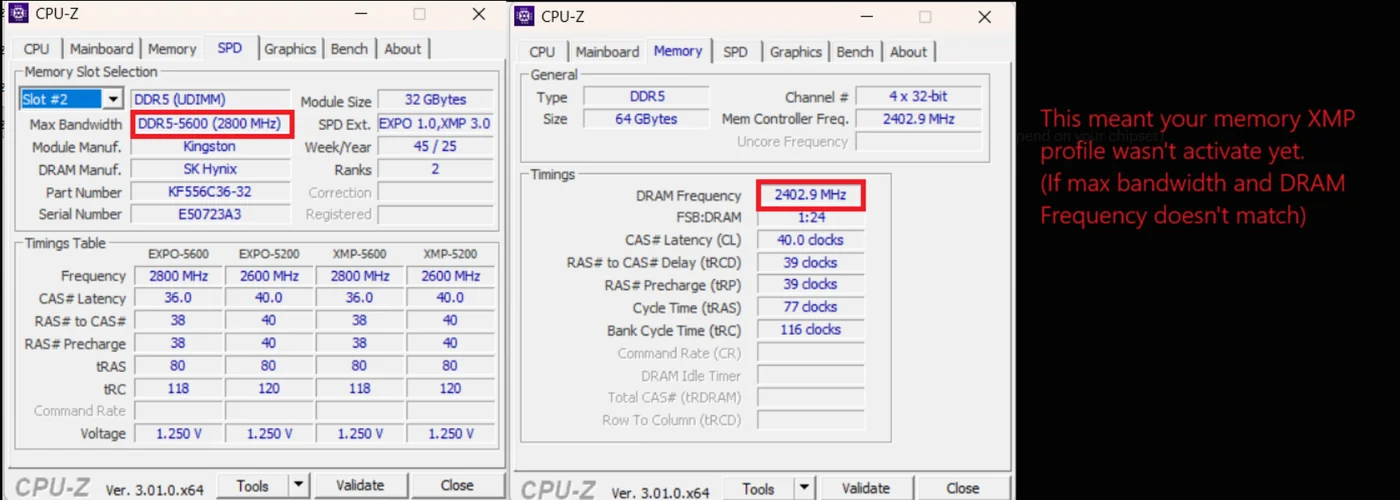
Turn on the EXPO / A-XMP / XMP profile in your BIOS. The name and menu depend on your mainboard and CPU: search your mainboard model (or ask an AI). Afterwards CPU-Z should show the full speed.
2. Process priority and affinity
With Process Lasso:
Open Process Lasso.
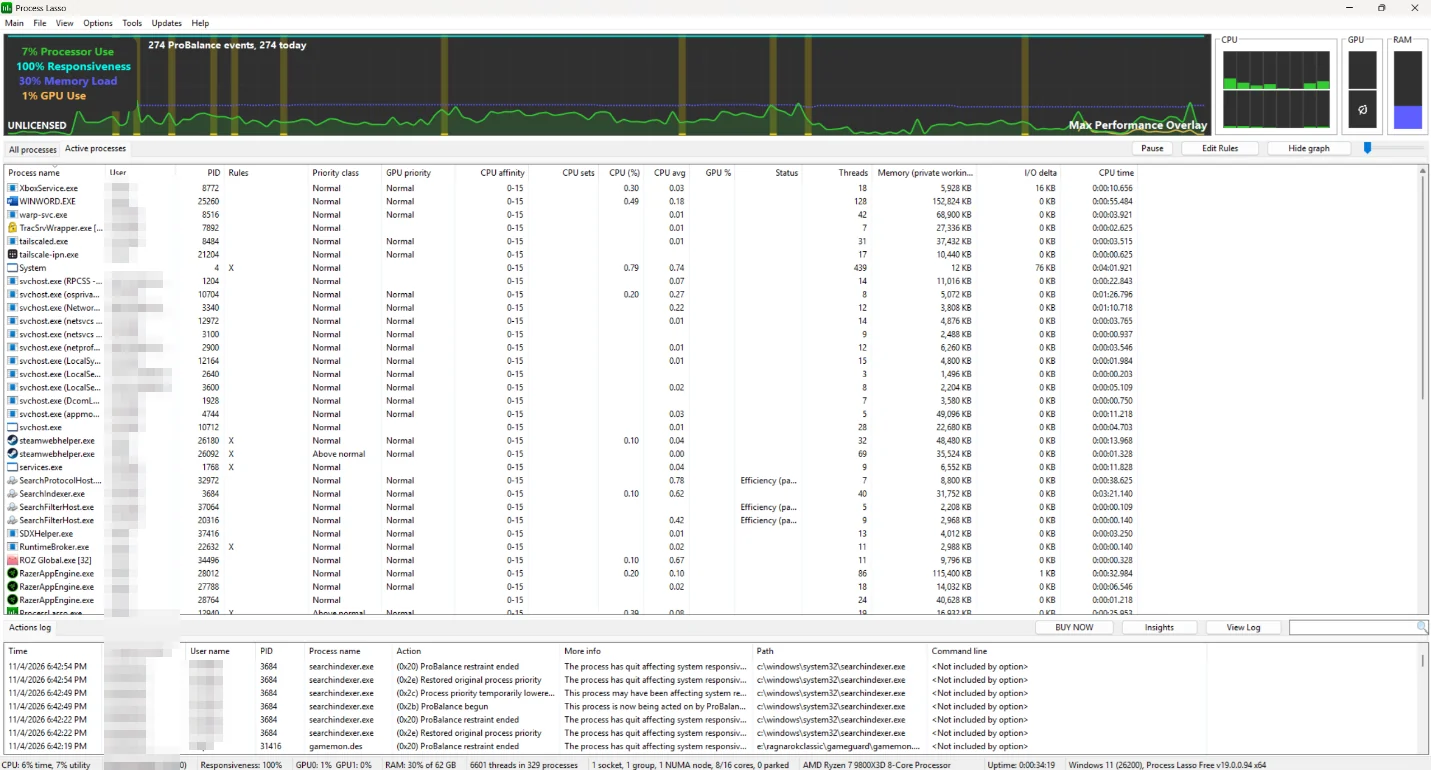
Start Ragnarok: Zero, log in, then find Ragexe.exe in the list.

Right-click Ragexe.exe → CPU Priority → Always → High. Don’t pick Real-time (the highest one).
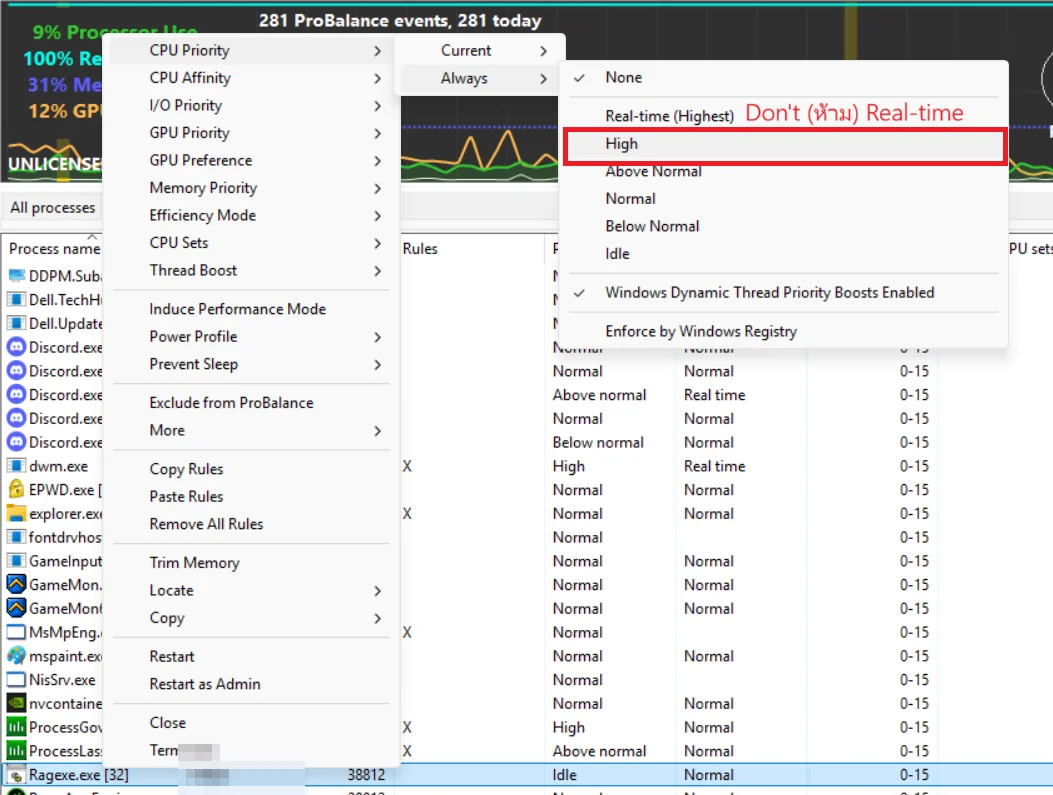
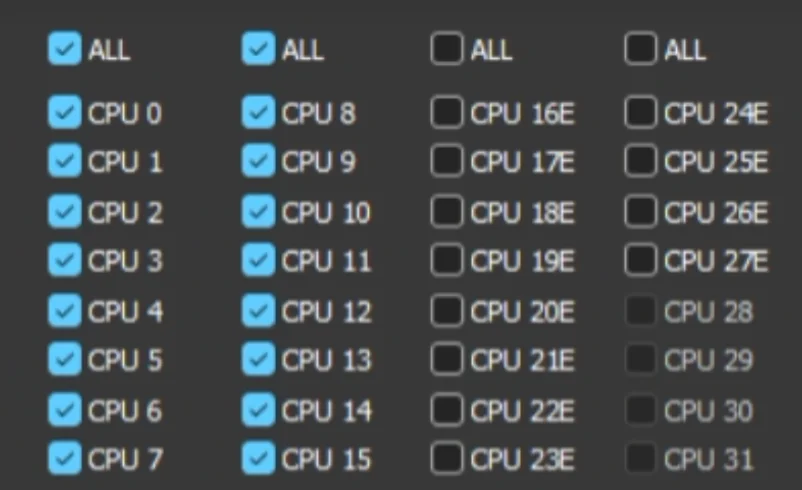
Intel CPUs with P- and E-cores: also set CPU Affinity → Always to the P-cores only, so the game never runs on an E-core.
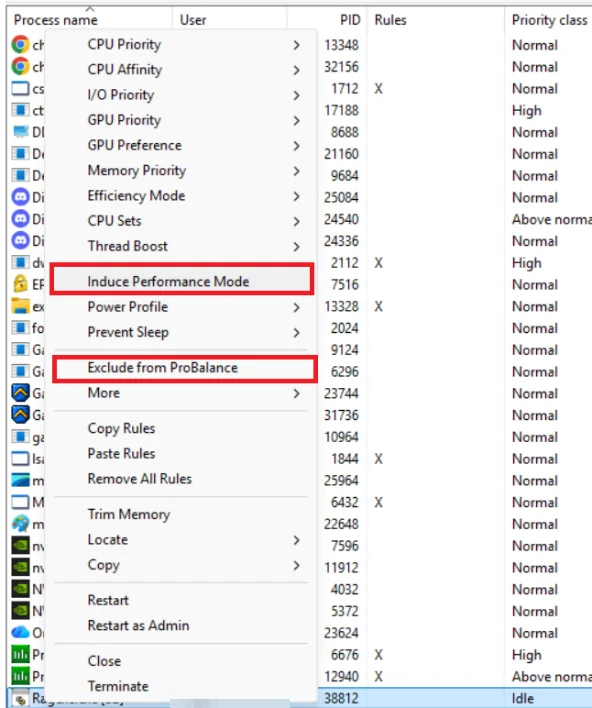
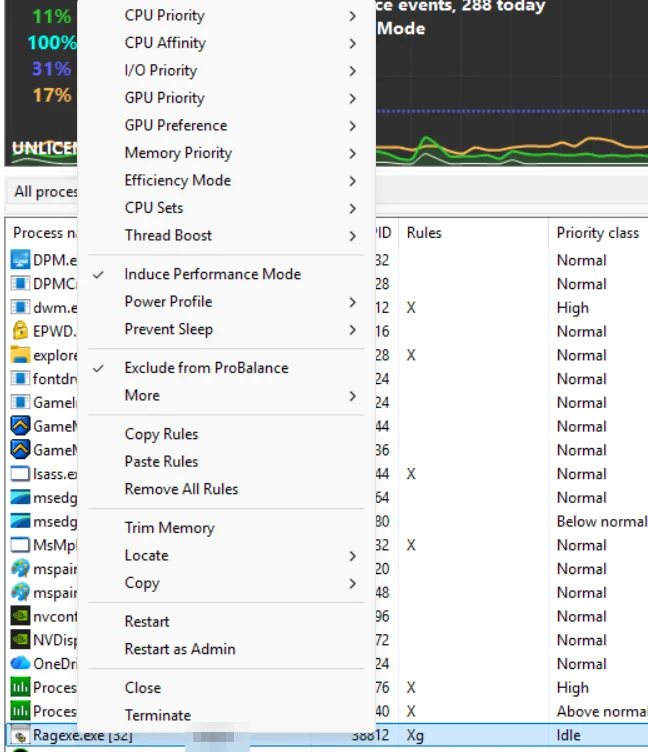
Right-click Ragexe.exe again: tick Induce Performance Mode and Exclude from ProBalance. It should end up like the picture on the right.
3. Game compatibility
Do this for both Ragexe.exe and ROZ Global.exe!
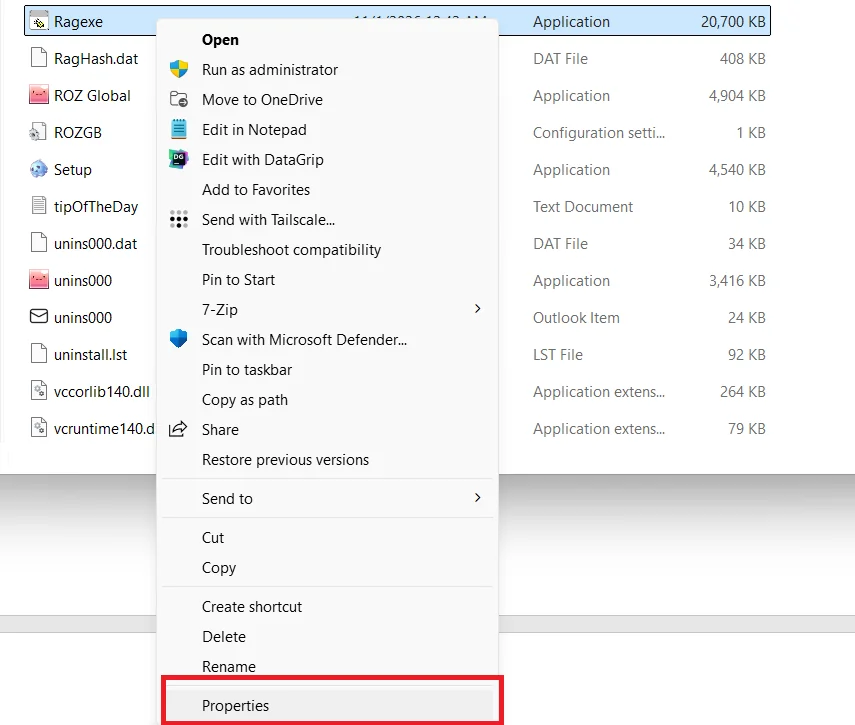
In the game folder, right-click the file → Properties.
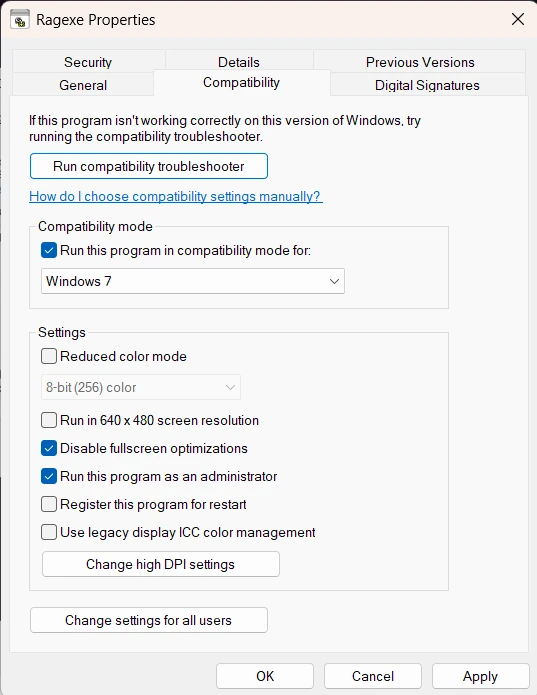
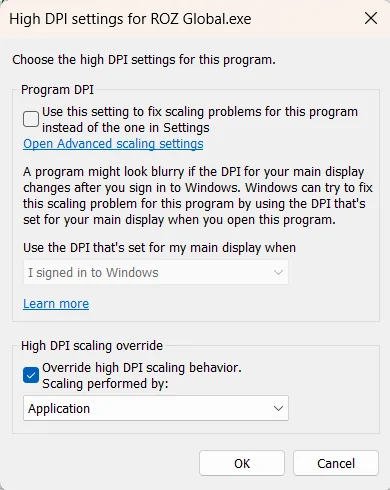
Compatibility tab: tick “Run this program in compatibility mode for” → Windows 7, and tick “Disable fullscreen optimizations” and “Run this program as an administrator”. Then Change high DPI settings → tick “Override high DPI scaling behavior”, scaling performed by Application.
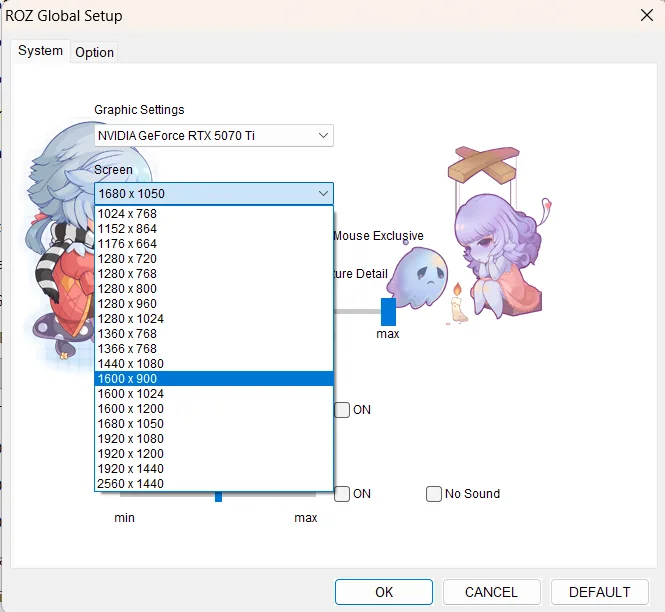
In the ROZ Global setup, pick a resolution below 1600×1200 if you can (unless your CPU has more than 96 MB of L3 cache).
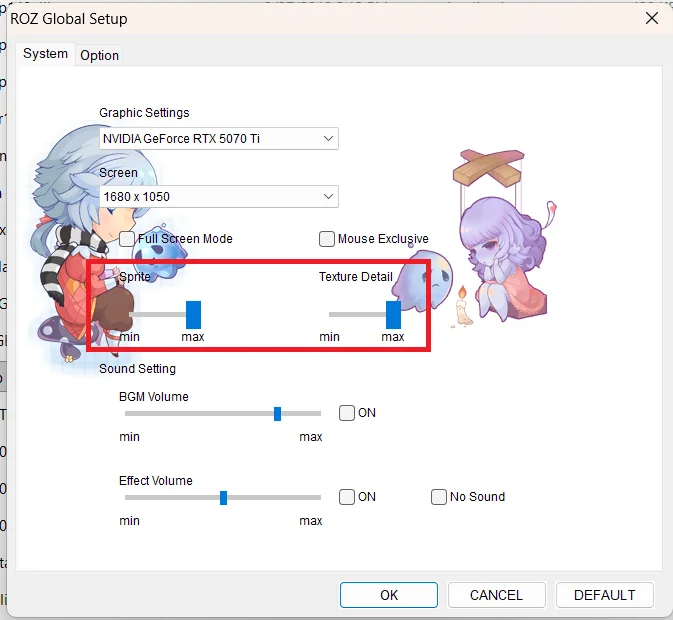
Very old PC and still unplayable? Set Sprite and Texture Detail to low (what matters most is WoE).
4. In-game and GPU settings
Turn off with these in-game commands: /sound, /bgm, /aura2, /lightmap, /mineffect.
NVIDIA: set Max Frame Rate to 300 FPS.
AMD: turn V-Sync off.
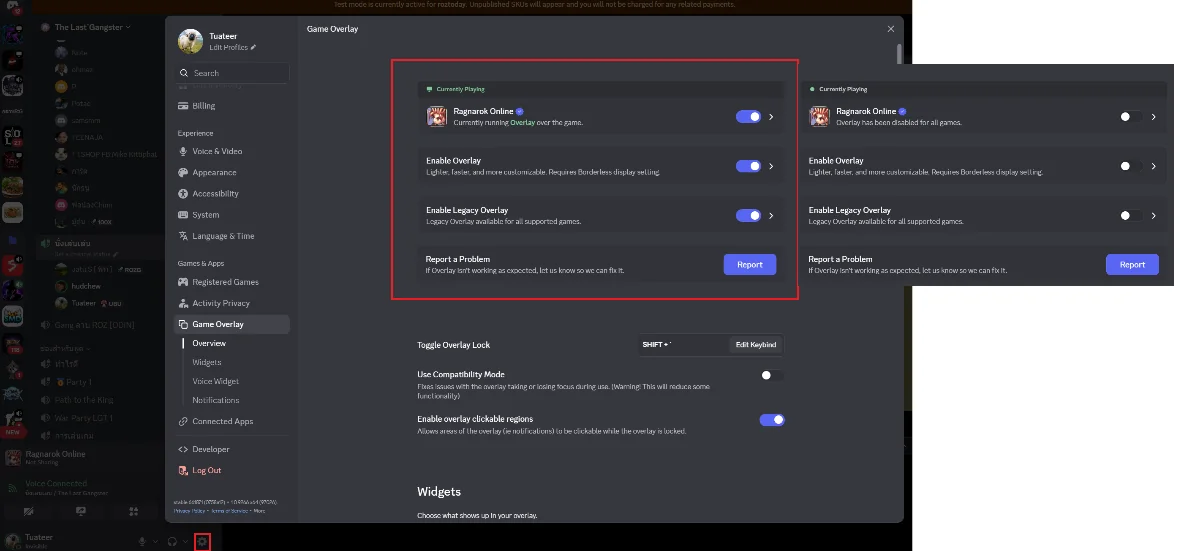
Close every overlay, especially the Discord overlay.
5. Lag in Nordfeld or Al De Baran (ISP)
If you lag on the Nordfeld or Al De Baran maps, play through Cloudflare WARP or another tool that tunnels your connection.
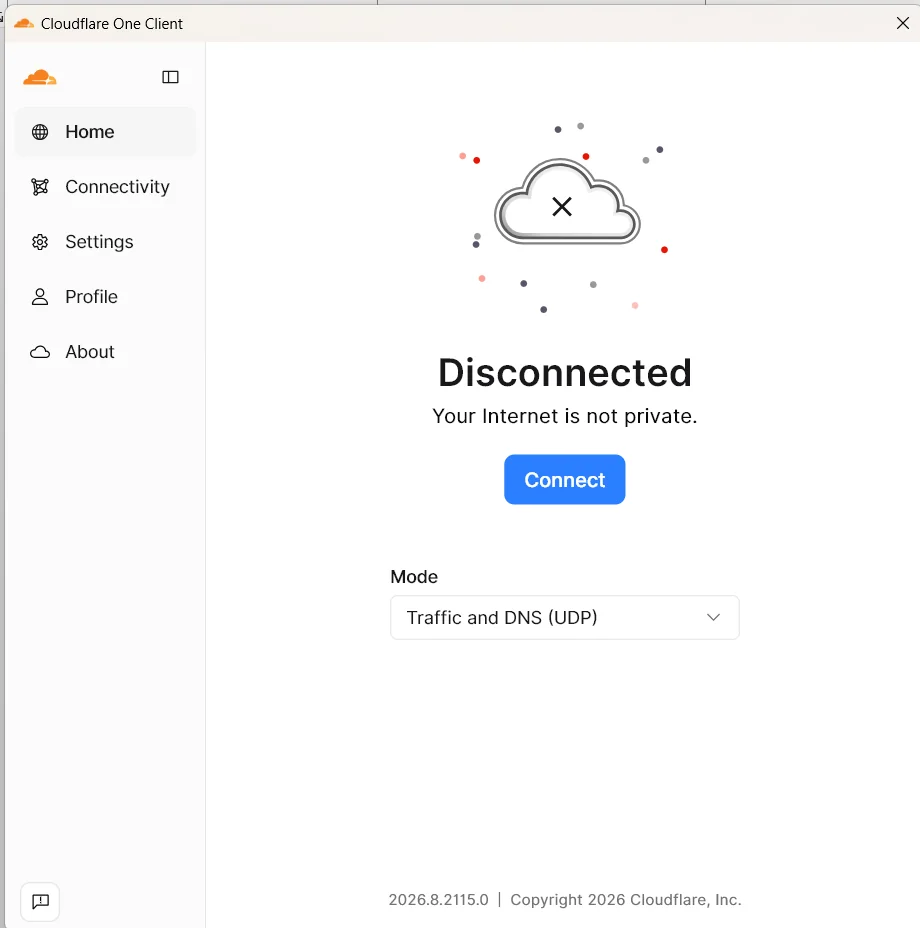
Download the Windows app from one.one.one.one.

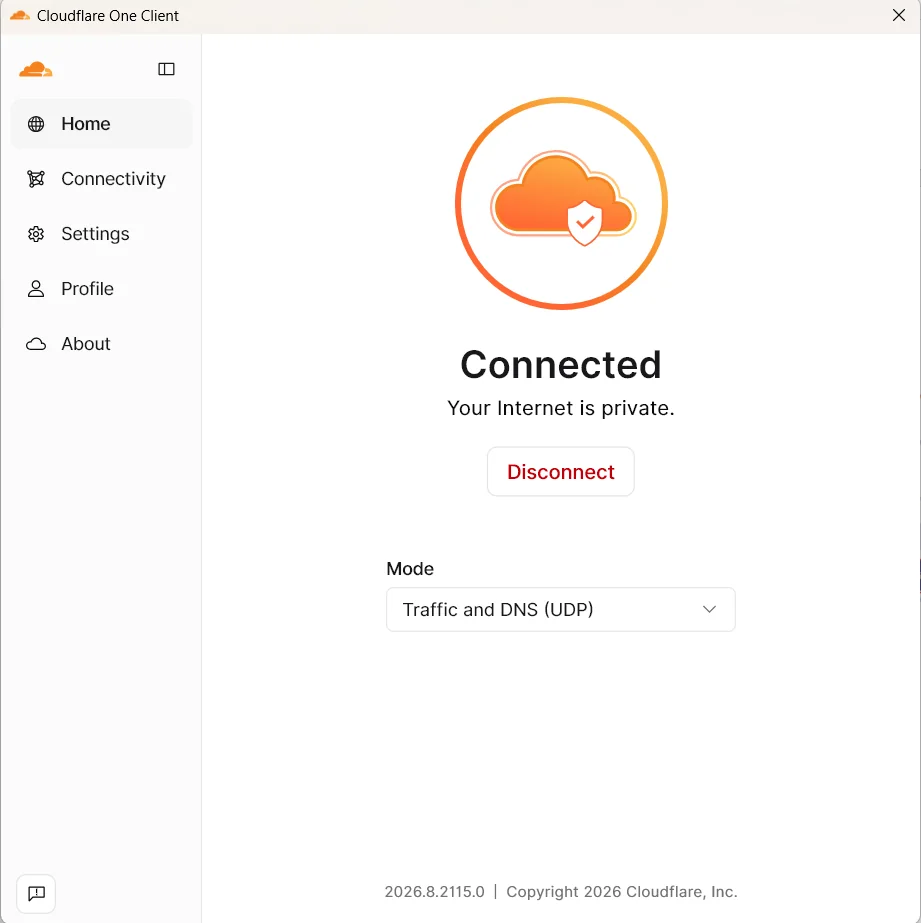
Open it and press Connect: it should say Connected.
6. Final note: CPU cache and WoE
L3 cache affects WoE performance a lot. With a CPU that has little L3 cache (around 32 MB), you will still lag in WoE sometimes, whatever you tweak.
The best CPU for Ragnarok: Zero and WoE right now is the AMD Ryzen 7 9850X3D, with 96 MB of L3 cache.
7. Why this works (technical)
Ragexe is an old 32-bit client that does almost all of its work on one CPU thread. In WoE that one thread has to track hundreds of players, skill effects, damage numbers and the packets describing them, so anything that keeps it fed and undisturbed helps.
- L3 cache and XMP
- The game keeps a large, scattered list of units and effects. What fits in the L3 cache is read in a few nanoseconds; what doesn’t has to come from RAM, many times slower. A big L3 (X3D CPUs) keeps WoE’s working set close to the core, and XMP makes the trips to RAM that are left as fast as your memory is rated for: without it, RAM runs at a slow default speed.
- Resolution
- A bigger game window shows more of the map, so more players and effects are on screen and must be drawn and updated every frame. Below 1600×1200 keeps that load down unless the CPU has a very large cache.
- Priority, affinity and power
- High priority lets the game’s thread run before background apps when the CPU is busy. Real-time is avoided because it can starve Windows’ own input, audio and network work and freeze the PC. On Intel, Windows may move the game to a slower E-core (often when the window isn’t focused), so pinning it to P-cores avoids sudden FPS drops. Induce Performance Mode switches to a high-performance power plan while the game runs, so the cores don’t clock down or park, and excluding it from ProBalance stops Process Lasso lowering the game’s priority exactly when WoE makes it busy.
- Compatibility mode and DPI
- The client was written for much older Windows. Windows 7 compatibility mode applies Microsoft’s fixes for old programs, and the DPI override stops Windows from rescaling the game’s window every frame, which costs time and blurs the picture. Disabling fullscreen optimizations turns off Windows’ own fullscreen handling, which can add input lag and stutter to old games, and running as administrator avoids permission problems the old client and GameGuard can run into.
- In-game commands, GPU and overlays
- /lightmap, /aura2 and /mineffect cut lighting, auras and skill effects, the heaviest things to draw in a crowded WoE, and turning off sound saves the CPU mixing hundreds of skill sounds. Uncapped, the old engine renders thousands of frames a second and keeps the CPU busy; a 300 FPS cap leaves that time for game logic. V-Sync off on AMD avoids stalls while waiting for the screen. Overlays hook into the game’s drawing on every frame, adding work (and can clash with GameGuard).
- Network: why WARP helps in Nordfeld and Al De Baran
- The game talks to the server over one TCP connection and every unit on screen means a stream of small packets: who appeared, who moved, which skill hit. Busy maps like Nordfeld and Al De Baran (and WoE) send far more of them. TCP delivers packets strictly in order, so if one is lost on a congested ISP route, everything behind it waits for the resend: the game freezes, then catches up all at once (rubber-banding), even when the ping looks fine. The ROZ server sits behind Cloudflare’s network (the address in our captures is a Cloudflare one), so Cloudflare WARP carries your traffic inside its own tunnel straight onto Cloudflare’s network: it skips the ISP’s congested or badly peered route and any shaping the ISP applies to game traffic.